
Jetpack Composeで画像を領域いっぱいに表示する(ContentScale.Crop)
画像の縦横比を保ちながら、指定した領域を埋めるように拡大・縮小します。
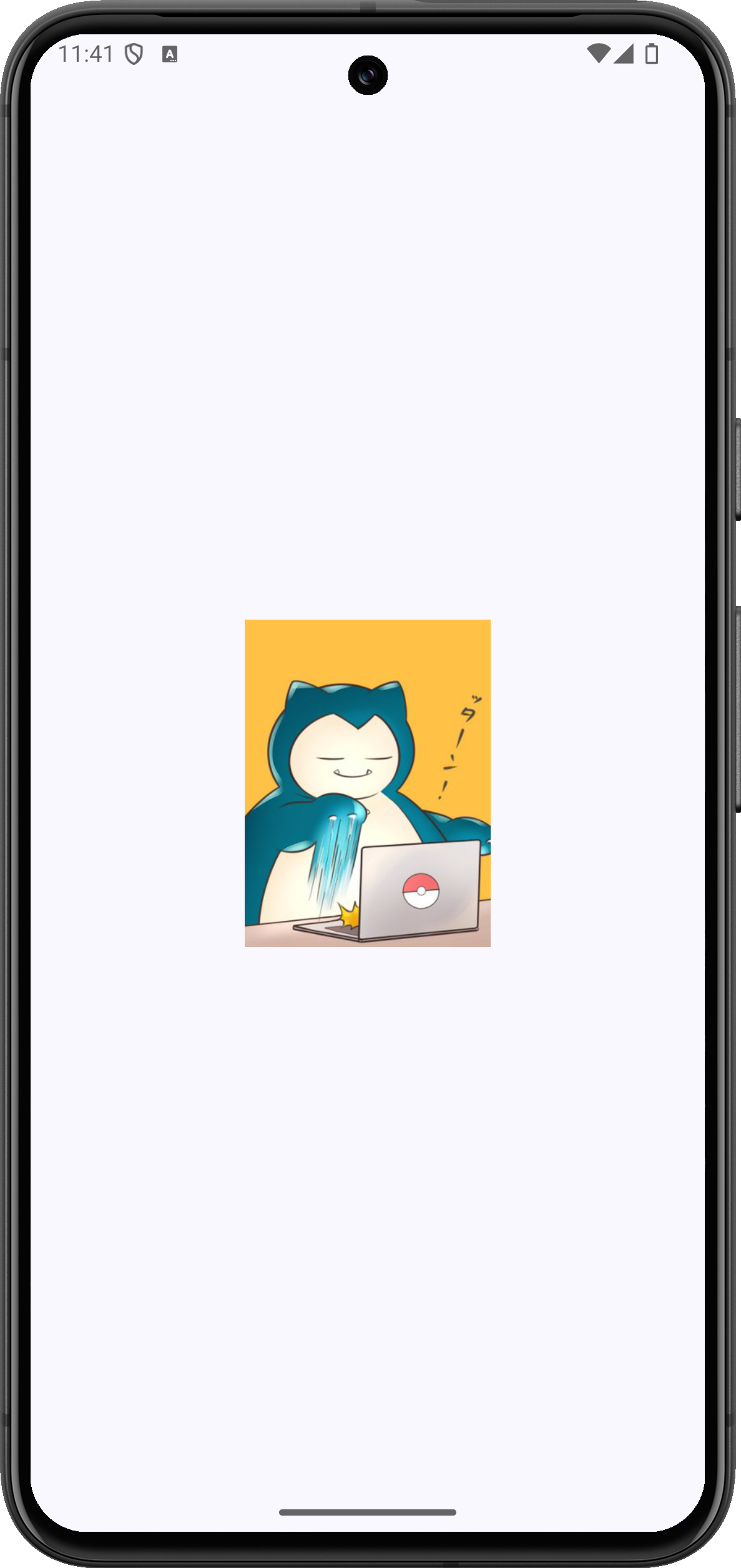
実装のポイント
ContentScale.Cropでは150 × 200dpの領域を埋めるため、領域からはみ出す部分が切り取られます。画像全体を見せたい場合はFitの例を使います。
準備
Android StudioのCompose対応プロジェクトで、Material 3を使用します。以下のコードではパッケージ名をcom.swiswiswift.swiswikotlinにしています。自分のプロジェクトに合わせて変更してください。テーマはMaterialThemeに揃えています。
各記事は独立したサンプルです。同じプロジェクトで試す場合は、前のサンプルのMainActivityやContentViewを置き換えてください。
サンプルの画像をapp/src/main/res/drawable/snorlax.pngに置き、res/values/strings.xmlへ次の文字列を追加します。別の画像を使用するときは、リソース名と説明も変更してください。

<resources>
    <string name="snorlax">カビゴンの画像</string>
</resources>
コード
MainActivity.kt
package com.swiswiswift.swiswikotlin

import android.os.Bundle
import androidx.activity.ComponentActivity
import androidx.activity.compose.setContent
import androidx.activity.enableEdgeToEdge
import androidx.compose.foundation.layout.fillMaxSize
import androidx.compose.foundation.layout.padding
import androidx.compose.material3.MaterialTheme
import androidx.compose.material3.Scaffold
import androidx.compose.ui.Modifier

class MainActivity : ComponentActivity() {
    override fun onCreate(savedInstanceState: Bundle?) {
        super.onCreate(savedInstanceState)
        enableEdgeToEdge()
        setContent {
            MaterialTheme {
                Scaffold(modifier = Modifier.fillMaxSize()) { innerPadding ->
                    ContentView(innerPadding)
                }
            }
        }
    }
}
ContentView.kt
package com.swiswiswift.swiswikotlin

import androidx.compose.foundation.Image
import androidx.compose.foundation.layout.Arrangement
import androidx.compose.foundation.layout.Column
import androidx.compose.foundation.layout.PaddingValues
import androidx.compose.foundation.layout.fillMaxSize
import androidx.compose.foundation.layout.padding
import androidx.compose.foundation.layout.size
import androidx.compose.runtime.Composable
import androidx.compose.ui.Alignment
import androidx.compose.ui.Modifier
import androidx.compose.ui.layout.ContentScale
import androidx.compose.ui.res.painterResource
import androidx.compose.ui.res.stringResource
import androidx.compose.ui.tooling.preview.Preview
import androidx.compose.ui.unit.dp
import androidx.compose.material3.MaterialTheme

@Composable
fun ContentView(innerPadding: PaddingValues = PaddingValues()) {
    Column(
        modifier = Modifier
            .fillMaxSize()
            .padding(innerPadding),
        horizontalAlignment = Alignment.CenterHorizontally,
        verticalArrangement = Arrangement.Center
    ) {
        Image(
            modifier = Modifier
                .size(150.dp, 200.dp),
            painter = painterResource(id = R.drawable.snorlax),
            contentScale = ContentScale.Crop,
            contentDescription = stringResource(id = R.string.snorlax)
        )
    }
}

@Preview(showBackground = true)
@Composable
fun ContentViewPreview() {
    MaterialTheme {
        ContentView()
    }
}