
Jetpack Composeでボタンを押したら文字を変える
rememberとmutableStateOfで文字列を保持し、ボタンから値を変更します。
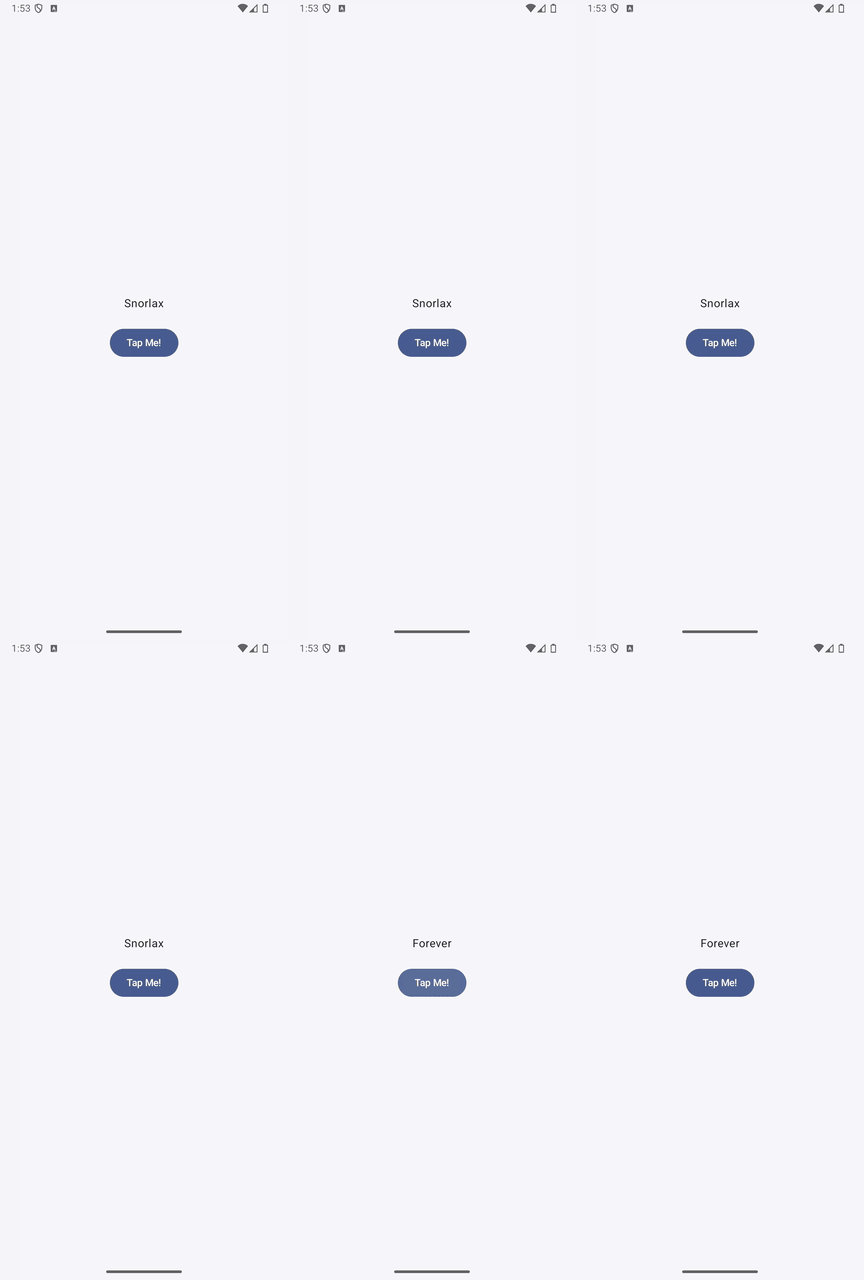
実装のポイント
ボタンを押すとtextが「Snorlax」から「Forever」に変わります。値を読むTextは状態の変更に合わせて再描画されます。
rememberは再コンポーズの間に状態を保持します。画面回転などでActivityが再作成された場合にも文字列を保持したいときは、rememberSaveableを使います。
準備
Android StudioのCompose対応プロジェクトで、Material 3を使用します。以下のコードではパッケージ名をcom.swiswiswift.swiswikotlinにしています。自分のプロジェクトに合わせて変更してください。テーマはMaterialThemeに揃えています。
各記事は独立したサンプルです。同じプロジェクトで試す場合は、前のサンプルのMainActivityやContentViewを置き換えてください。
コード
MainActivity.kt
package com.swiswiswift.swiswikotlin

import android.os.Bundle
import androidx.activity.ComponentActivity
import androidx.activity.compose.setContent
import androidx.activity.enableEdgeToEdge
import androidx.compose.foundation.layout.fillMaxSize
import androidx.compose.foundation.layout.padding
import androidx.compose.material3.MaterialTheme
import androidx.compose.material3.Scaffold
import androidx.compose.ui.Modifier

class MainActivity : ComponentActivity() {
    override fun onCreate(savedInstanceState: Bundle?) {
        super.onCreate(savedInstanceState)
        enableEdgeToEdge()
        setContent {
            MaterialTheme {
                Scaffold(modifier = Modifier.fillMaxSize()) { innerPadding ->
                    ContentView(innerPadding)
                }
            }
        }
    }
}
ContentView.kt
package com.swiswiswift.swiswikotlin

import androidx.compose.foundation.layout.Arrangement
import androidx.compose.foundation.layout.Column
import androidx.compose.foundation.layout.PaddingValues
import androidx.compose.foundation.layout.fillMaxSize
import androidx.compose.foundation.layout.padding
import androidx.compose.material3.Button
import androidx.compose.material3.Text
import androidx.compose.runtime.Composable
import androidx.compose.runtime.getValue
import androidx.compose.runtime.mutableStateOf
import androidx.compose.runtime.remember
import androidx.compose.runtime.setValue
import androidx.compose.ui.Alignment
import androidx.compose.ui.Modifier
import androidx.compose.ui.tooling.preview.Preview
import androidx.compose.ui.unit.dp
import androidx.compose.material3.MaterialTheme

@Composable
fun ContentView(innerPadding: PaddingValues = PaddingValues()) {
    Column(
        modifier = Modifier
            .fillMaxSize()
            .padding(innerPadding),
        horizontalAlignment = Alignment.CenterHorizontally,
        verticalArrangement = Arrangement.Center
    ) {
        var text by remember { mutableStateOf("Snorlax") }
        Text(
            text = text,
            modifier = Modifier.padding(20.dp)
        )
        Button(
            onClick = { text = "Forever" }
        ) {
            Text(text = "Tap Me!")
        }
    }
}

@Preview(showBackground = true)
@Composable
fun ContentViewPreview() {
    MaterialTheme {
        ContentView()
    }
}